Disclaimer: We do not claim ownership of this game and have embedded it purely for your enjoyment. All rights, content, and intellectual property belong to the original creator(s) or publisher(s). We truly appreciate the developers’ creativity and hard work—if you enjoy the game, please support them by visiting their official website or platform.
Los Santos has been a favorite open world for more than a decade. Even with GTA VI out now, millions of players still jump into GTA V every day for the heists, the car chases, and the chaos. So it’s no surprise that one of the most searched gaming questions is how to play a GTA V mobile game simulator on a phone.
Most guides stop at “here’s an app, download it.” This one is different. First I’ll help you find the method that fits what you already own. Then I’ll show you how to set it up, which in-game settings make GTA V easier to play on a small screen, and which activities work best for quick phone sessions.
The One Thing You Need to Know First
There’s no official GTA V app for Android or iPhone. Rockstar has never released it on mobile, so every “GTA 5 mobile download” link you see online is fake.
The two big cloud gaming options don’t help right now either. GTA V isn’t on GeForce Now, and it left Xbox Game Pass in April 2026.
That still leaves several real ways to play. The right one depends on a simple question: do you already own GTA V?
Find Your Method in 10 Seconds
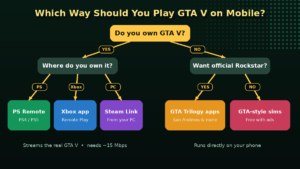
- You own GTA V on PS4 or PS5. Use PS Remote Play.
- You own GTA V on Xbox One or Xbox Series X|S. Use the Xbox app’s Remote Play.
- You own GTA V on PC. Use Steam Link.
- You don’t own GTA V and want an official Rockstar game. Get the GTA Trilogy apps, such as San Andreas.
- You don’t own GTA V and want something free. Try a GTA-style simulator game.
Jump to the section that matches you.
If You Play on PlayStation (PS4 or PS5)
GTA V is on both PS4 and PS5, and both consoles can stream to your phone.
PS5 setup:
- Go to Settings > System > Remote Play and turn on Enable Remote Play.
- In Settings > System > Power Saving > Features Available in Rest Mode, turn on Stay Connected to the Internet and Enable Turning On PS5 from Network.
PS4 setup:
- Go to Settings > Remote Play Connection Settings and turn on Enable Remote Play.
- In Settings > Account Management, set this console as your Primary PS4.
- In Settings > Power Save Settings > Set Features Available in Rest Mode, turn on Stay Connected to the Internet and Enable Turning On PS4 from Network.
On your phone: Install PS Remote Play, sign in with the same PlayStation account, pair your controller, and choose your console. Launch GTA V and you’re back in Los Santos.
If You Play on Xbox (Xbox One or Series X|S)
- On your Xbox, go to Settings > Devices & connections > Remote features and turn on Enable remote features.
- Set the power mode to Sleep so it can wake up remotely.
- Install the Xbox app on your phone and sign in with the same Microsoft account.
- Open your library, choose Remote play on this device, and start GTA V.
If You Play on PC
- Install the free Steam Link app on your Android phone or iPhone.
- Turn on your PC and open Steam.
- Open Steam Link on your phone and pair it with your PC using the on-screen code.
- Connect a controller and launch GTA V.
Bought GTA V on the Epic Games Store or Rockstar Games Launcher instead of Steam? You can still try this. In Steam, use Games > Add a Non-Steam Game to My Library, select GTA V, and it will show up in Steam Link.
Speed tip for all three methods: Sony recommends at least 15 Mbps for the best Remote Play experience. Wire your console or PC to the router with a LAN cable, and use 5 GHz Wi-Fi on your phone.
If You Don’t Own GTA V
Official option: the GTA Trilogy on mobile
Rockstar sells GTA III, GTA: Vice City and GTA: San Andreas in their Definitive Edition versions as separate apps on Android and iOS. They run directly on your phone, without streaming or a console. San Andreas is the closest to GTA V in size and freedom, with a huge map, three cities, and lots of side activities.
Free option: GTA-style simulator games
The Play Store and App Store have many open-world crime and driving games inspired by GTA. They’re unofficial and free, with ads and in-app purchases. Before installing one, check the developer name, download count and recent reviews, and only use the official app stores.
Best GTA V Settings for Playing on a Phone
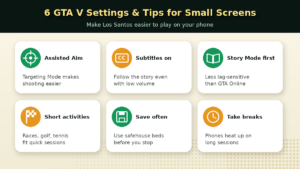
When you stream GTA V to a phone, the game itself doesn’t know it’s on a small screen. These settings make a big difference:
1. Turn on Assisted Aim. In the pause menu, go to Settings > Controls > Targeting Mode and choose Assisted Aim. Shootouts are much easier when you’re looking at a 6-inch screen.
2. Turn on subtitles. Under Settings > Display, switch subtitles on. You’ll follow the story even when you’re playing with low volume or in a noisy place.
3. Play Story Mode first. GTA Online is more sensitive to lag because you’re playing against real people. Story Mode is more forgiving if your stream drops a frame or two.
4. Choose short activities. Phone sessions are often short, so street races, golf, tennis, and stunt jumps are perfect. Save the long heist missions for when you have time and strong Wi-Fi.
5. Save often. Sleep in a safehouse bed to save, or use the quick save option on the in-game phone, before you put your phone down. Streams can disconnect, and you don’t want to lose progress.
6. Take breaks. Streaming for hours heats up your phone and drains the battery. Take a short break every hour or so.
Should You Use Touch Controls or a Controller?
You can play with on-screen touch controls, but GTA V has a lot of buttons to manage: driving, shooting, the weapon wheel, the phone, and switching between characters. That’s hard on a touchscreen.
A Bluetooth controller (DualSense or Xbox) with a phone clip, or a phone grip controller, makes GTA V feel almost exactly like playing on a TV. If you plan to play a lot, it’s the best upgrade you can buy.
Stay Safe: Skip the Fake APKs
Fake “GTA 5 APK + OBB” files are still everywhere, often with titles like “GTA 5 Android Official” or “GTA V Lite.” These can install malware, steal your Google or gaming account, or trap you in survey pages.
The rule is simple: if it isn’t a streaming app (PS Remote Play, Xbox, Steam Link), an official Rockstar app, or a game from the official app stores, don’t install it.
A Quick Note on Age Rating
GTA V is rated for adults (18+ / Mature). If children use your phone or console, set up parental controls with Google Play Family Link, iPhone Screen Time, or your console’s family settings.
Frequently Asked Questions
Can I play GTA V on my phone without a console or PC?
Not the real GTA V. Without one, try the official GTA: San Andreas mobile app or a GTA-style simulator.
Can I play GTA Online on my phone?
Yes, through Remote Play or Steam Link, as long as you can play GTA Online on your console or PC. A strong connection matters even more for online play.
Does Remote Play work with a PS4?
Yes. Both PS4 and PS5 support Remote Play to Android and iPhone.
Why is GTA V blurry on my phone?
Your connection is probably too slow or unstable. Wire your console to the router, use 5 GHz Wi-Fi, and lower the stream resolution.
Is it free to play GTA V on mobile?
The streaming apps are free, but you need to own GTA V. The GTA Trilogy apps are paid, and simulator games are free with ads.
Will Rockstar ever release GTA V on mobile?
Rockstar hasn’t announced anything. Don’t trust “release date” posts from unofficial websites.
Conclusion
The best way to play a GTA V mobile game simulator experience depends on what you own. With a PlayStation, use PS Remote Play. With an Xbox, use the Xbox app. With a PC, use Steam Link. Without GTA V, try San Andreas or a free GTA-style simulator. Turn on Assisted Aim and subtitles, play Story Mode first, save often, and skip every fake APK. Los Santos fits in your pocket better than you’d expect.